Time Lapse Video with Raspberry Pi Camera
The first thing I wanted to try with the camera board for the Raspberry Pi was a time lapse video, they really appeal to me, and because of the size of both the Pi and its camera I thought I could attach it to my car nearly at road level, take a drive at dusk and get a total different perspective.
Time lapse videos are made by joining lots, 2600 in this video, pictures together into one video stream.
This is the second video I made, the first had a quicker frame rate but its all a bit manic, check it out, http://youtu.be/MSkh5jSR1ws.
I got a Raspberry Model A, a Camera board and a freeloader charging pack.
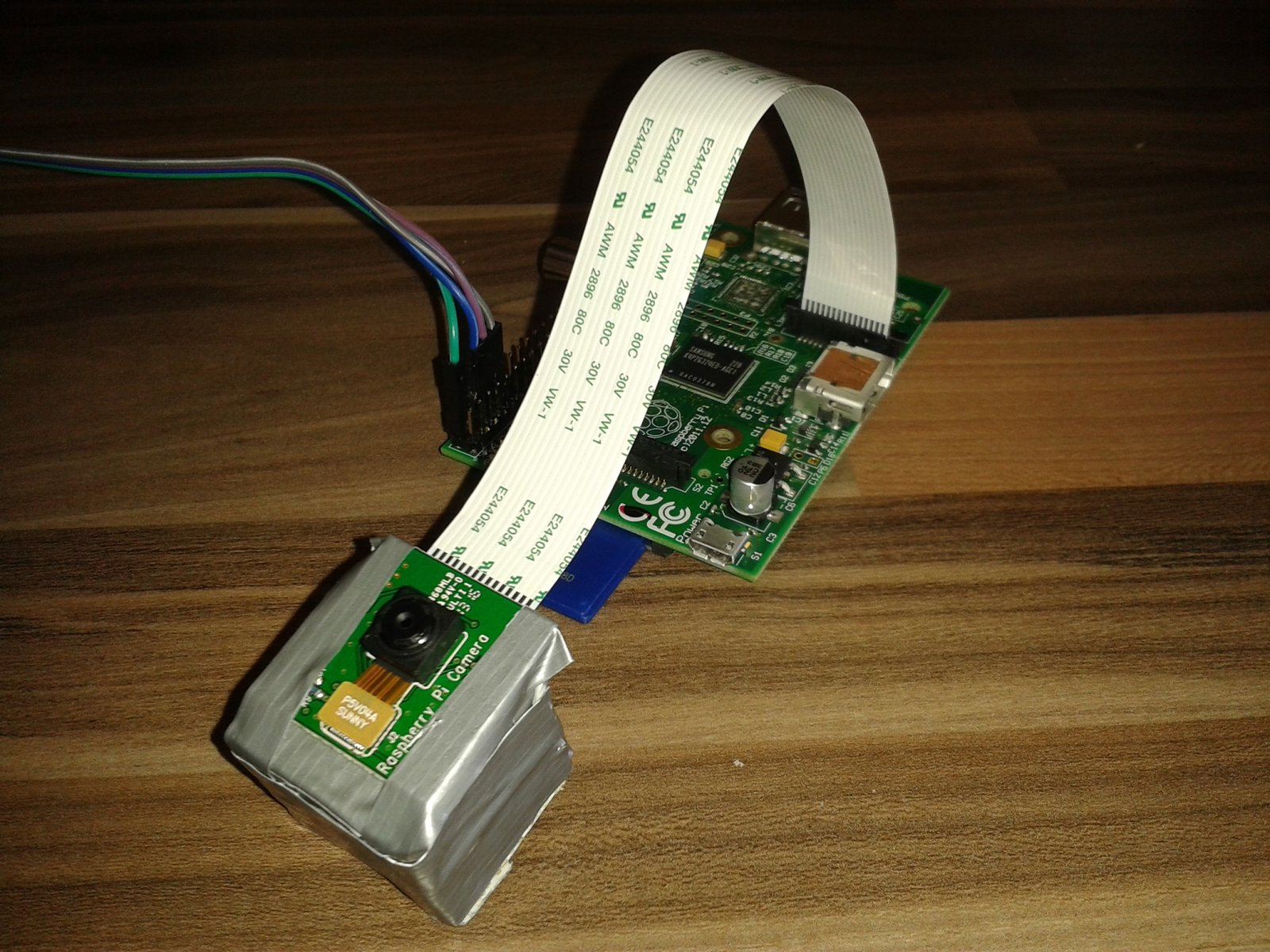
Getting the Pi to take a lot of pictures!
If you haven’t already you going to need to setup your camera see this post on raspberrypi.org for info.
I created a simple script which used the time lapse function of the raspistill command.
Create a directory to hold images
mkdir ~/images
Create script to capture images
nano ~/capturetimelapse.sh
filename=$(date -u +"%Y%m%d_%H%M%S")_%04d.jpg
/opt/vc/bin/raspistill -o /home/pi/images/$filename -tl 1000 -t 7200000 > /home/pi/camera.log 2>&1 &
The
filename=$(date -u +"%Y%m%d_%H%M%S")_%04d.jpg
line is used to format the filename to the date and time the script started and add a rolling number to the images so the images are saved as:
[2013 May 27th _ 9:30:12 _ image number.jpg]

20130527_093012_0001.jpg
20130527_093012_0002.jpg
20130527_093012_0003.jpg
20130527_093012_0004.jpg
...
The
/opt/vc/bin/raspistill
command is then run with the following options:
-o /home/pi/images/$filename- uses the filename we specified as the output file-tl 1000- sets timelapse mode and tells it to take a picture every 1000 milliseconds (1 second)-t 7200000- set the timeout and to record for 7200000 milliseconds [2 hours * 60 minutes * 60 seconds * 1000]> /home/pi/camera.log- tells the command to log messasge to camera.log2>&1- tells the command to log errors to camera.log&- tells the command to run in the background
An init.d script is then used to make this run at start-up. If you want more information about running commands at start-up on the Pi, see Rasberry Pi - Running programs at start-up.
Make script executable
chmod +x ~/capturetimelapse.sh
Run the script at start-up
sudo nano /etc/init.d/runtimelapse
#! /bin/sh
# /etc/init.d/runtimelapse

### BEGIN INIT INFO
# Provides:          runtimelapse
# Required-Start:    $remote_fs $syslog
# Required-Stop:     $remote_fs $syslog
# Default-Start:     2 3 4 5
# Default-Stop:      0 1 6
# Short-Description: Simple script to start a program at boot
# Description:       A simple script from www.stuffaboutcode.com which will start / stop a program a boot / shutdown.
### END INIT INFO

# If you want a command to always run, put it here

# Carry out specific functions when asked to by the system
case "$1" in
  start)
    echo "Starting timelapse"
    # run application you want to start
    /home/pi/capturetimelapse.sh
    ;;
  stop)
    echo "Stopping timelapse"
    # kill application you want to stop
    killall raspistill
    ;;
  *)
    echo "Usage: /etc/init.d/runtimelapse {start|stop}"
    exit 1
    ;;
esac

exit 0
Make script executable
sudo chmod +x /etc/init.d/runtimelapse
Start script to test it
sudo /etc/init.d/runtimelapse start
Stop the script
sudo /etc/init.d/runtimelapse stop
Register script to run at start-up
sudo update-rc.d runtimelapse defaults
Note - you can stop the script running at start-up by using:
sudo update-rc.d -f runtimelapse remove
Capture video
I gaffer taped the Pi, Camera and Battery to the font of my car, the camera is taped to a small block of wood to make it easier to mount, the Pi and battery pack are in a plastic bag taped behind the license plate.
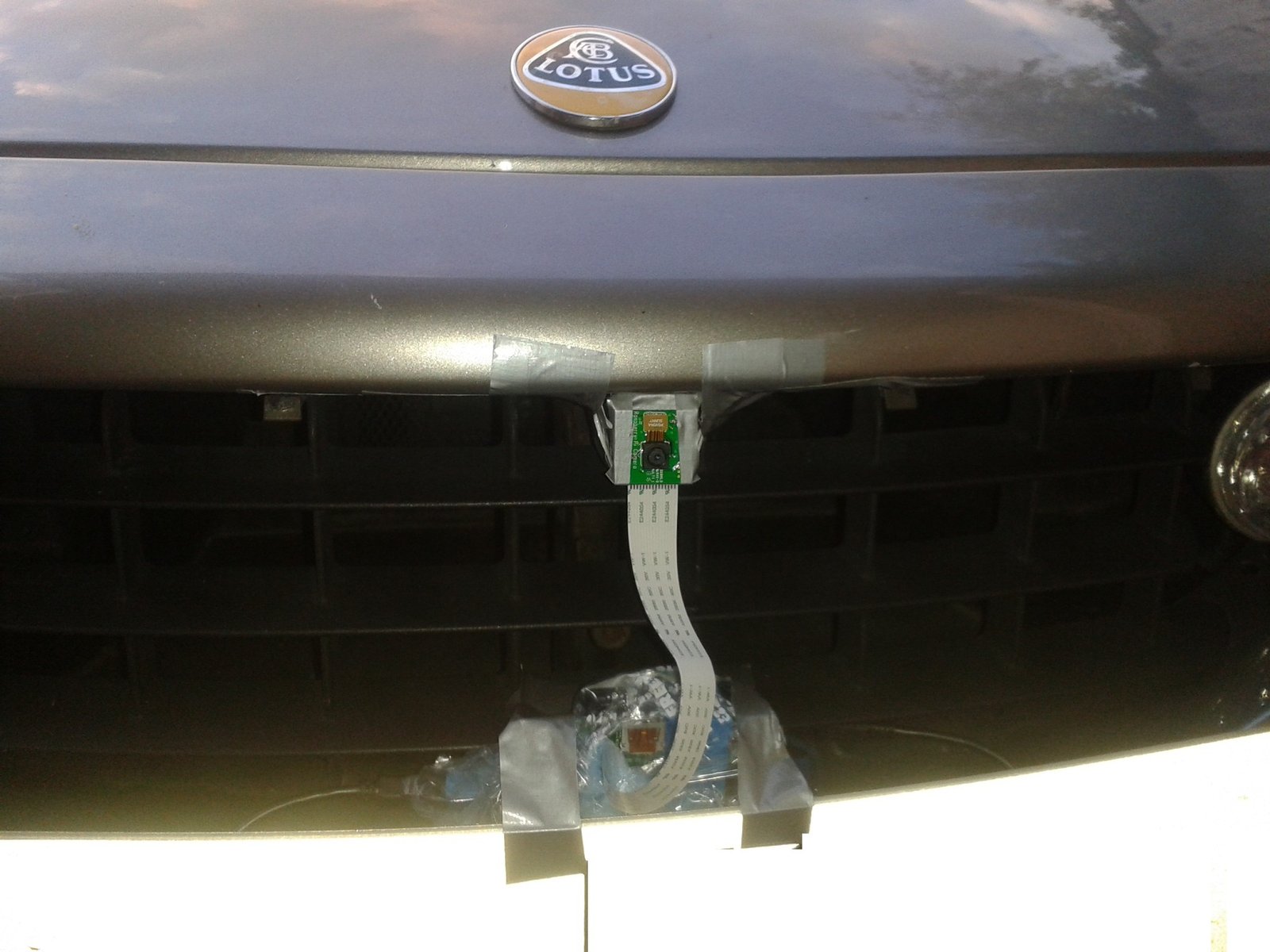
Plug it in, the Pi will start up and the time lapse program will run, you will know its working because the light on the camera will turn on, then drive… You will need a lot of footage, 24 frames a second is about typical for a timelapse, so 24 minutes of footage give you 1 minute.
Make the timelapse video
I copied the files off the SD card onto my Windows PC using LinuxReader and then used Windows Live Movie maker to make the timelapse video, check out this video on youtube for a tutorial. The software is free and it does a reasonable job.