Minecraft Graphics Turtle
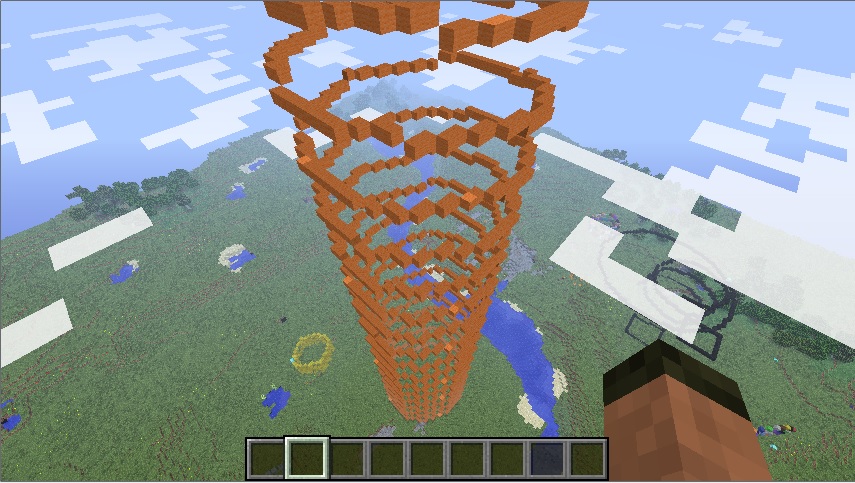
Spiral built using the Minecraft Turtle
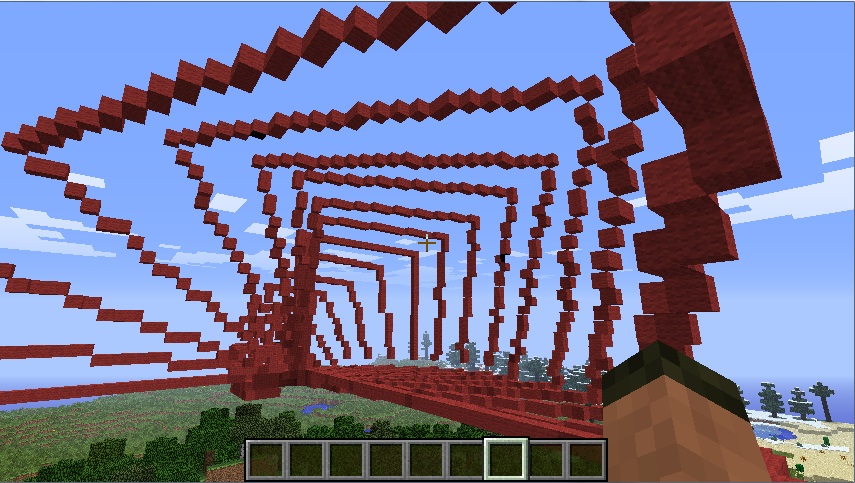
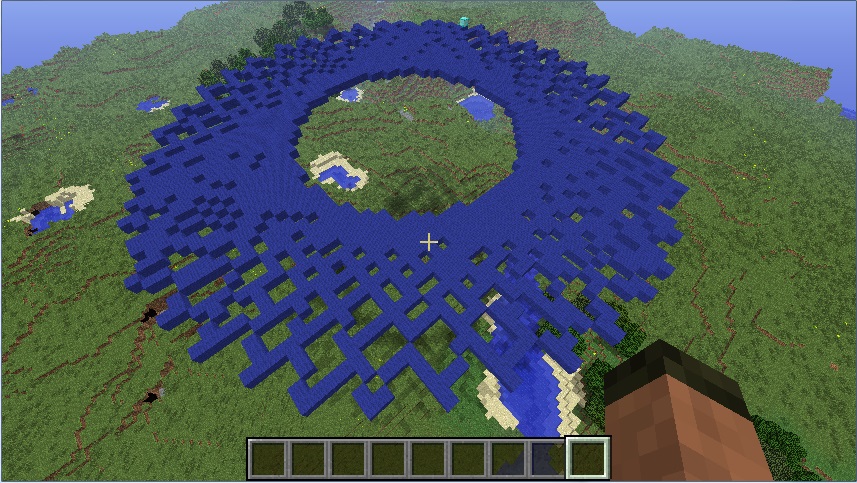
I have had this idea of creating a 3d graphics turtle in Minecraft for a little while so one Sunday morning while I was waiting for the boy to finish a swimming lesson this is what I did.
The Minecraft Graphics Turtle allows you to use the Minecraft world as your drawing studio and unlike most graphics turtle’s you aren’t confined to 2d space, you can go up and down as well as left and right, and when your master piece is finished, you can walk around it!
Note - The Minecraft Turtle is now part of the minecraft-stuff module, see minecraft-stuff.readthedocs.io for documentation and install instructions.
The MinecraftTurtle is really easy to install and use, clone it and run the setup program.
If you want to get started quickly through, I would download the complete code from my github, as it contains some examples and all the files you need to have go.
Download Minecraft Turtle Code:
cd ~
git clone https://github.com/martinohanlon/minecraft-turtle.git
Install the library
cd ~/minecraft-turtle
python setup.py install
python3 setup.py install
Try the ‘squares’ example: Startup Minecraft and load a game.
cd ~/minecraft-turtle/examples
python example_squares.py
Create your own turtle program: The turtle is really easy to program, Open IDLE, create a new file and save it.
from mcturtle import minecraftturtle
from mcpi import minecraft
from mcpi import block

#create connection to minecraft
mc = minecraft.Minecraft.create()

#get players position
pos = mc.player.getPos()

#create minecraft turtle at the players position and give it a name
steve = minecraftturtle.MinecraftTurtle(mc, pos)

#tell the turtle to go forward 15 blocks
steve.forward(15)

#tell the turtle to go right 90 degrees
steve.right(90)

#tell the turtle to go up by 45 degress
steve.up(45)

#tell the turtle to go forward 25 blocks
steve.forward(25)
Run the program and you should see the turtle draw 2 lines, one straight ahead, the other at a 90 degree angle right and a 45 degree angle up.
The turtle supports lots of other commands:
#create the turtle
#  position is optional, without it gets created at 0,0,0
steve = minecraftturtle.MinecraftTurtle(mc, pos)

#rotate right, left by a number of degrees
steve.right(90)
steve.left(90)

#pitch up, down by a number of degress
steve.up(45)
steve.down(45)

#go forward, backward by a number of blocks
steve.forward(15)
steve.backward(15)

#get the turtles position
turtlePos = steve.position
print(turtlePos.x)
print(turtlePos.y)
print(turtlePos.z)

#set the turtles position
steve.setposition(0,0,0)
steve.setx(0)
steve.sety(0)
steve.setz(0)

#set the turtles headings (angle)
steve.setheading(90)
steve.setverticalheading(90)

#put the pen up/down
steve.penup()
steve.pendown()

#get if the pen is down
print steve.isdown()

#change the block the pen writes with
steve.penblock(block.DIRT.id)

#change the turtles speed (1 - slowest, 10 - fastest, 0 - no animation, it just draws the lines)
steve.speed(10)

#return the turtle to the position it started in
steve.home()
Have a look at the other examples and see what you can create.