Microbit - get data from USB
As part of my Minecraft, a Microbit and an X-Wing project, I used the USB to read data from the Microbit’s accelerometer and buttons to make the X-Wing move.
@NCSComputing on twitter has started re-using the code to make other things happen, so thought it would be a good idea to write up how it works, so others can do the same.
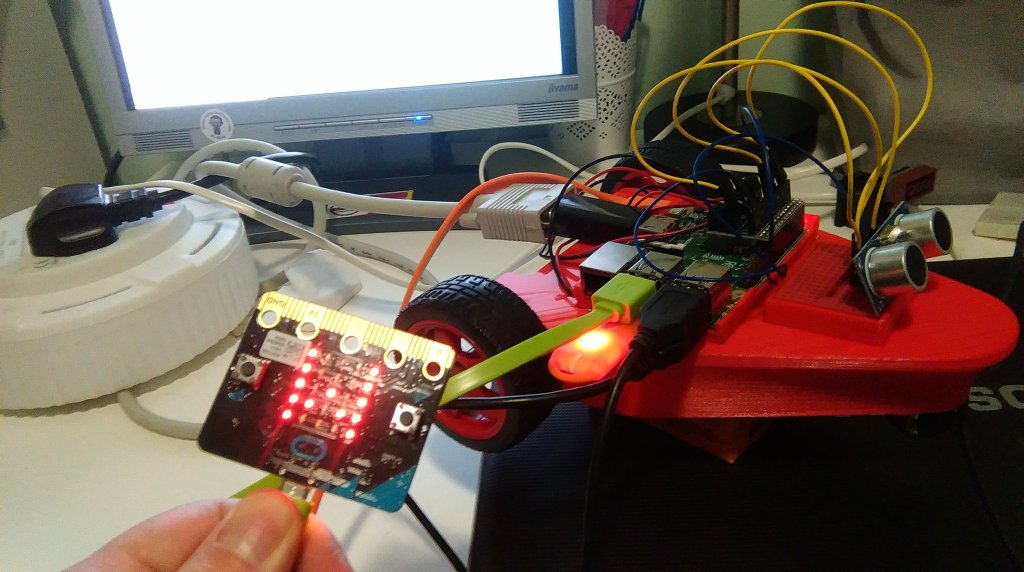
To make this work you need one program which runs on the Microbit and prints data and a second runs on your computer (a Raspberry Pi, PC, Mac, anything with a USB port) which reads the data via a serial connection.
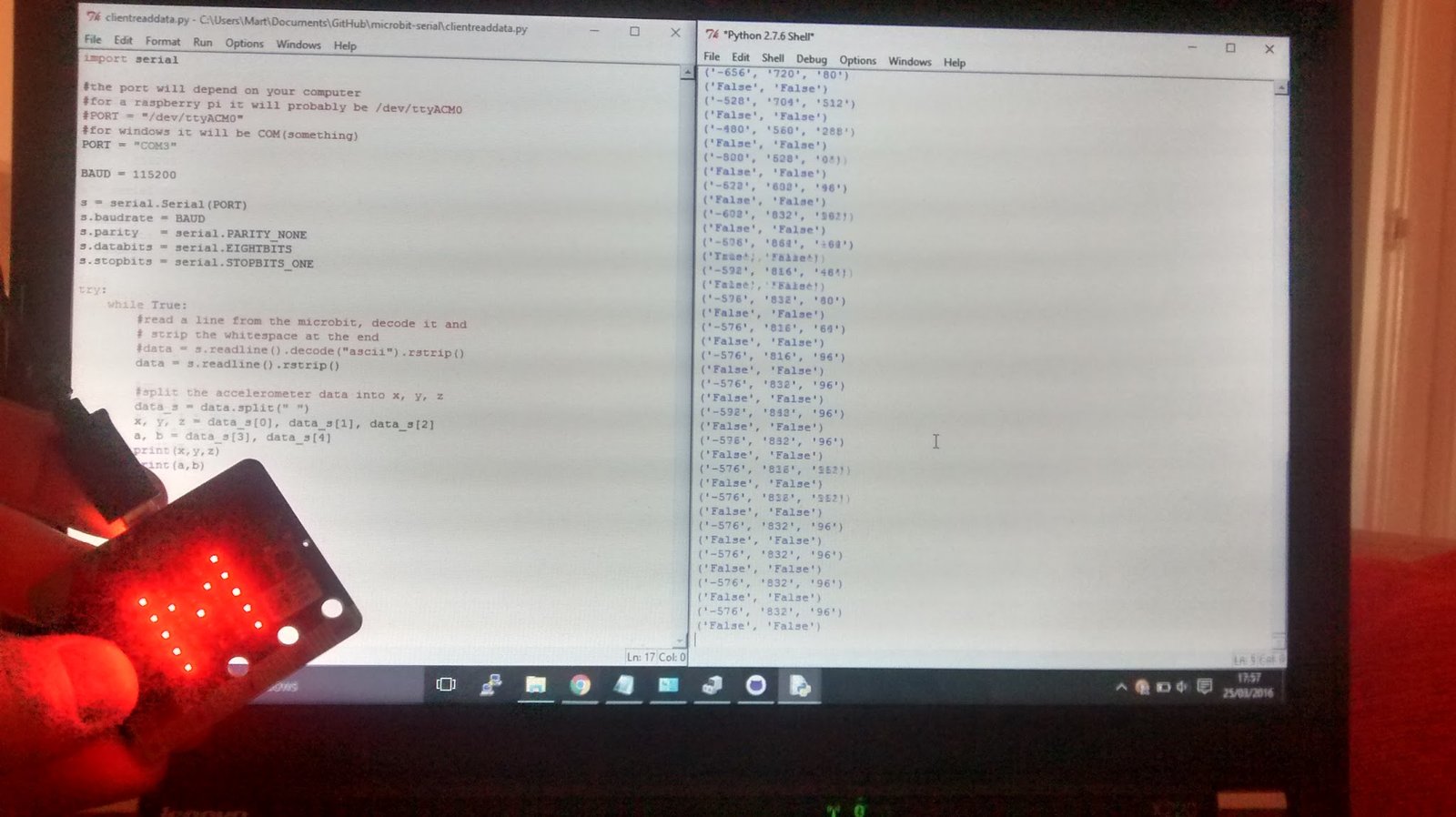
See github.com/martinohanlon/microbit-serial for the code for both of these programs.
The Microbit The microbitreaddata.py python program runs on the Microbit, gets the data and prints it to the output, which in this case is the USB serial connection, and should be flashed to your computer using the Python editor:
from microbit import *

REFRESH = 500

def get_data():
    x, y, z = accelerometer.get_x(), accelerometer.get_y(), accelerometer.get_z()
    a, b = button_a.was_pressed(), button_b.was_pressed()
    print(x, y, z, a, b)

def run():
    while True:
        sleep(REFRESH)
        get_data()

display.show('M')
run()
Your Computer The clientreaddata.py python program runs on the computer and reads the data using pyserial:
import serial

#the port will depend on your computer
#for a raspberry pi it will probably be /dev/ttyACM0
#PORT = "/dev/ttyACM0"
#for windows it will be COM(something)
PORT = "COM3"

BAUD = 115200

s = serial.Serial(PORT)
s.baudrate = BAUD
s.parity   = serial.PARITY_NONE
s.databits = serial.EIGHTBITS
s.stopbits = serial.STOPBITS_ONE

try:
    while True:
        #read a line from the microbit, decode it and
        # strip the whitespace at the end
        data = s.readline().rstrip()

        #split the accelerometer data into x, y, z
        data_s = data.split(" ")
        x, y, z = data_s[0], data_s[1], data_s[2]
        a, b = data_s[3], data_s[4]
        print(x,y,z)
        print(a,b)

finally:
    s.close()
The values of the accelerometer will be put into the variables x, y, z and the buttons in a & b.
Setting the PORT You will have to change the PORT variable in the clientreaddata.py program to the comm port that the Microbit is connected to on your computer.
For a Raspberry Pi it is probably “/dev/ttyACM0”, in the event it isn’t, unplug the Microbit and run:
ls /dev/tty*
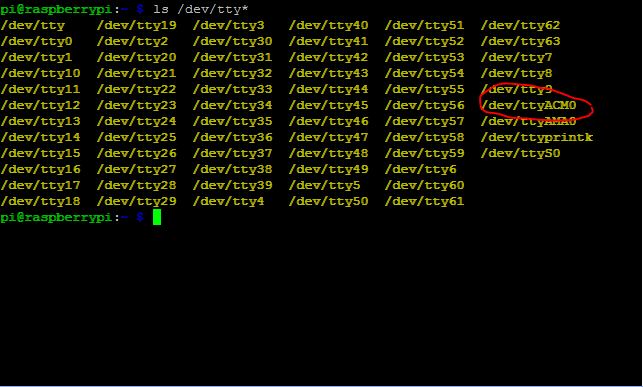
Then plug the Microbit and run the command again, the new device which appears will be the port of your Microbit.
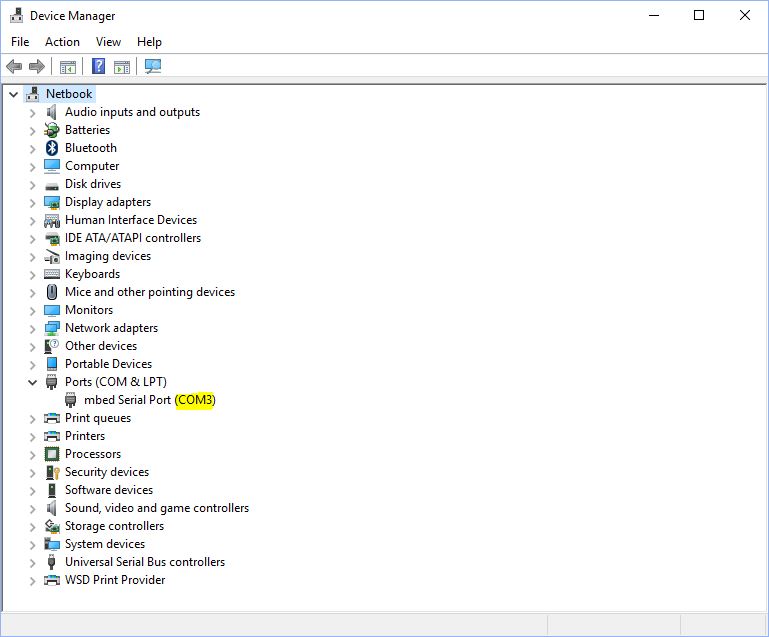
For Windows it will be “COM#”, the # being a number, the easiest way is to look in Device Manager for the “mBed Serial Port (COM#)”